
Whenever your computer or mobile device utilizes a Google service, such as Google Search, Google Maps, or YouTube, any searches you perform are logged into My Activity.
The My Activity feature is useful for those who need to view their search history or would like a general idea of their searching habits. However, for others, the information in My Activity may cause a privacy concern. To view, edit, and disable this feature, follow the steps below.
This page relates to the history only of Google's services (including Google Search), not search history specific to any of the other Internet browsers.
If you're not logged into any Google service, your web history is not logged by Google. It's only being tracked in your Internet browser.
- Accessing the My Activity page.
- Viewing history.
- Editing or deleting history.
- Disabling history.
Accessing the My Activity page
- Navigate to the Google My Activity homepage.
- Once prompted, enter your Google account username and password.
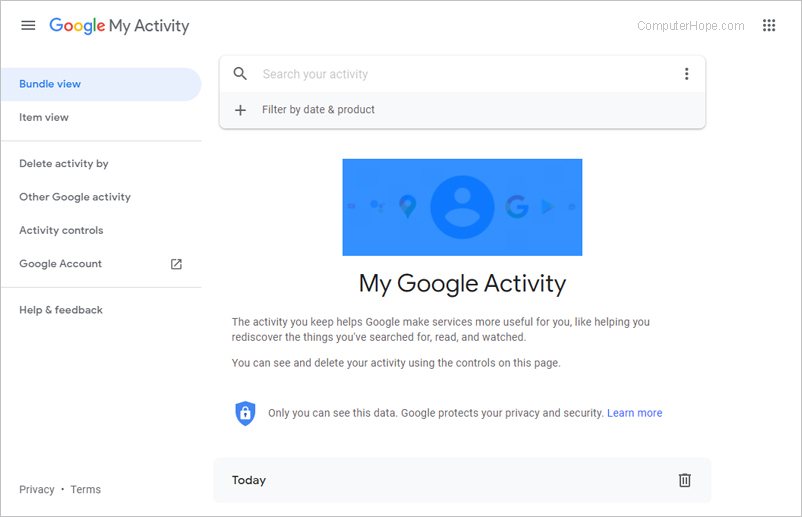
- Once you've successfully logged in, you will see a screen similar to the example below.
Viewing the history
Getting started
When you log into the Google My Activity page, all recent web search results are shown for the different services, as you can see in the image above. Under Today, next to Items, you can select the specific service for which you'd like to view the history. Otherwise, you'll see history for all of the services from newest to oldest.
Recent history
To view the history of pages you've recently visited, select Bundle view or Item view from the navigation menu on the left, and then scroll down the page.
Older history
To find a page you've visited in the past, use the Search box at the top of the screen.
You may use the Filter by date & product feature at the top of the My Activity page to perform a more specific search of your history.
Editing and deleting the history
Getting started
When you log into the Google My Activity page, all recent web search results are shown for the different services, as you can see in the image above. Under Today, next to Items, you can select the specific service for which you'd like to delete the history. Otherwise, you'll see history for all of the services from newest to oldest.
Individual history items
To delete the history of one or a few pages you've recently visited:
- Select Bundle view or Item view from the navigation menu on the left.
- Locate the entry you'd like to delete.
- Click the three vertical dot
 icon on the right side and select Delete.
 - Repeat for each entry you'd like to remove.
Many history items
To delete multiple history items, select Delete activity by from the navigation menu on the left. Under the Delete by date section, you have a few options:
- The first section allows you to pick a suggested range of dates.
- The second section allows you to select a specific range of dates.
- The third section allows you to filter deleted content according to product or service.
Once you've chosen all of your options, select DELETE at the bottom of the section.
Older history
To find a page you've visited in the past, use the Search box at the top of the screen.
You may use the Filter by date & product feature to perform a more specific search of your history.
Once you've located the entries you'd like to delete, use the steps from the two previous sections to remove them.
Disabling the history
If you'd like to disable all history tracking for Google's services, follow the steps below.
Pausing the history tracking feature may hinder certain performance aspects of some of your Google services.
- From the My Activity homepage, select Activity controls from the menu on the left.
- In the page that appears, look for the Web & App Activity section.
- Click the toggle switch
 for the Web & App Activity option.
 - On the Pause Web & App Activity? page, click the Pause link at the bottom-right of the page.
In the future, you can quickly access this section by going directly to the Activity controls page.
If you're not logged into any Google service, your web history is not logged.
Keep in mind that Google still logs every search query and associates each query with your IP address, even with this feature paused. However, disabling this feature will prevent anyone who has access to your computer and your Google login information from viewing your search history. Additional details about Google's Privacy Policy is on their Privacy FAQ.